,l;
![]() |
||||||
Printable Wedding Invitations
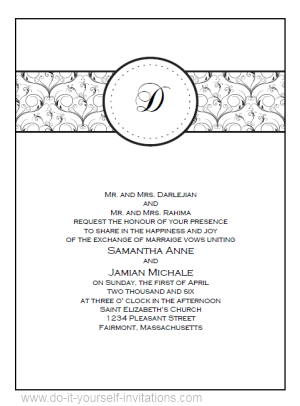
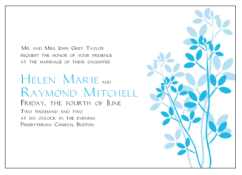
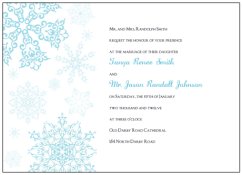
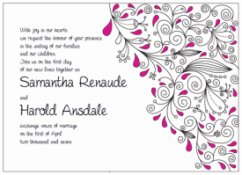
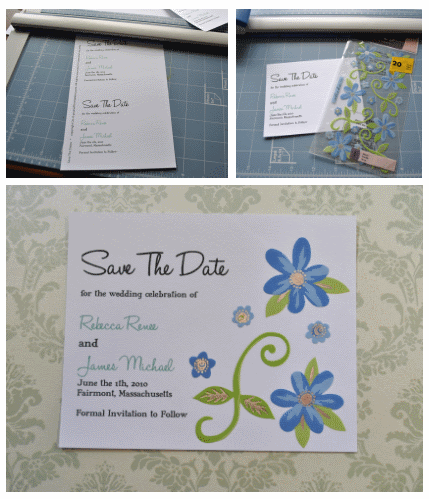
This tutorial will teach you how to design your own 5 x 7 wedding invitation cards to print yourself at home. You do not need to go out and spend a fortune on wedding invitations. You don't even need expensive fancy software to do it. I want to show you where you can get free download-able software and also how to make your own printable wedding invitations from scratch.
You will also need a graphic or picture to work with. A great way to find graphics cheap or even free is to check stock photography and art websites. A good place to look for free graphics and pictures is stock.xchng. The graphics are free to use but you should ask permission or gives the artist a heads up that you'll be using them. Most will be very happy to allow them to go on printable wedding invitations. Once you've got your software and an appropriate graphic you're ready to go! Open the Pain.net program and start by choosing File > New. A new window will open. Under where it says Print size change the dimensions to 7" wide and 5" in height. This is the best size for selecting envelopes, as well as a much easier size to print with this program. The program is photo editing software, so it's printing selection is to print sheets of photographs. You'll see when we get to the actual printing part. Now choose File > Open and find the graphic you have chosen to use to make your printable wedding invitations.
Next you want to copy and paste the image to your 5" by 7" document. Do this by hitting Control + A to select the entire image. Now hit Control + C to copy the selected image.
First things first; the text color. If you want just plain black text then just select the color black from the color palette and simply type in your text. Click the cursor anywhere on the canvas. You will be able to move the text after you have typed it. Type in your wedding invitation wording. You can change the font, size, and alignment of the text after typing as well.
When typing your wedding invitation wording make sure and leave three carriage return spaces (hit enter 3 times) between the wording where you will be inserting the names. Once all the details are perfect with the text size, color, and font, move the text to the right spot on the invitation. Choose a different tool in the toolbox to switch off of the alphabet tool.
You will have to type the names one at a time. Type the bride or groom's full name. Change the font to a nice scrolling curly font. Change the size of the font to a slightly bigger size as well. Now use the cursor to move the name into place amongst the rest of the invitation wording. Repeat this step for the groom's name as well.
Choose File > Print and a new window will open to the softwares photo printing wizard. Click next to continue to print. At the next window prompt you will need to choose the printing device you are going to print on, and then select printing preferences. Another new window will open. Select the paper description that matches that of what you will print onto. Also choose the highest resolution printing settings available for best results. Select OK and you will be brought back to the printing wizard. Click next and you will be brought to the Layout selection menu. Scroll through the available layouts until you come to the 5 x 7 cutout prints. Where it says number of times to use each picture select 2. Click next to go on to print out your invitations.
A useful tip for making your own printable wedding invitations... * Placement of the text is crucial. Once you are done with the whole invitations you may find that you do not like where you placed the text. You do not have to start over from scratch to fix it. Here's what you do. First select a highlight tool from the tool box. You will want the one shaped like a box with dashed line edges. Make a box around the text. Hit cntrl+C to copy the text. Now select the rectangle tool from the toolbox. It looks like a box with solid edges. In the upper left part of the document next to where it says tool select the option to create a filled shape rectangle. Now simply fill in the area where the text is with a white box to cover it over. Hit cntrl+V to paste the text and move it wherever you see fit. * If you mess up at any time during the design of your printable wedding invitations simply hit Cntl+Z to undo a mistake.
go from Printable Wedding Invitations back to DIY WEedding Invitations page
|
Search
About This SiteHow I'm overcoming the financial crisis all while staying home with my two little cherubs
![]()
The DIYI Ezine
|
|||||
|
|
||||||